 ADT Pulse Web Portal">
Google statistics tell me that 5120 of you search some variation of "ADT Web Portal" each month! Really! I guess it's time to write a blog and BEG your for your feedback so I can help you. COMMENT below if I don't cover your question so I can answer all 5120 of you... Please.
Now, let's take a step by step approach. I will highlight each tab with a BIG ole blue line so you can scroll to the tab you are curious about if you'd like. I'll hit the highlights of each tab in the first paragraph of each section and then offer more "in the trenches" info after so if you're not looking for that, no need to wade thorough it all. DEAL? The section will be as follows and in this order:
- Login info
- Summary Tab
- History Tab
- Alerts Tab
- Automations Tab
- Schedules Tab
- Systems Tab
Here goes:
ADT Pulse Log-in: Gaining access to your ADT Portal (FREE tip, www.adtpulse.com login doesn't work)
Log-in isn't actually a tab, however, no login, no tabs. And looking at the 3600 "www.adtpulse.com log in" searches, a bunch of us thing that that's how to do it. So, to clear it up, to log-in to your ADT Pulse system, you go to https://portal.adtpulse.com/ .
Feel free to scroll up and click on the "CUSTOMER LOG-IN" link above and bookmark that page, there's a big fat red ADT PULSE LOG-IN button on the middle of the page to take you there. Go ahead and bookmark it now... we'll wait...
Nice! Now you are logged in and we can get to the tabs. (even if you are not, let's pretend anyhow and you can visualize walking through your account with me and getting nice and comfy with it.)
Logging in take you to the Summary Tab.
Summary Tab
Basics:
The Summary tab is just that, a summary. It is divided up into the following 6 areas to give you a bird's eye view of your entire system.
- Security status or the armed status is displayed by a large green or red icon.
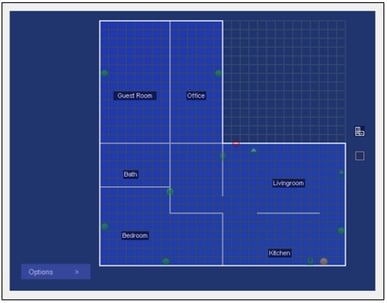
- Home View: A replica of your home's layout with icons that visually demonstrate the location and current status of devices.
- Other Devices: This shows the current status of the non-security devices installed at your site.
- Notable Events: Displays security panel and sensor activity that might be considered unusual or require your attention, such as the state of the security system
- Cameras: A list of your cameras showing the last 3 recorded clips
- Today's Schedule: Displays any schedules that you have set up for today.
A Deeper look at the Summary tab:
By default, the summary tab has every module showing with exception of the Home View section. To customize the view, click "Customize this Page" at the lower left side of the screen. You'll notice the 6 sections mentioned above and further explained below.
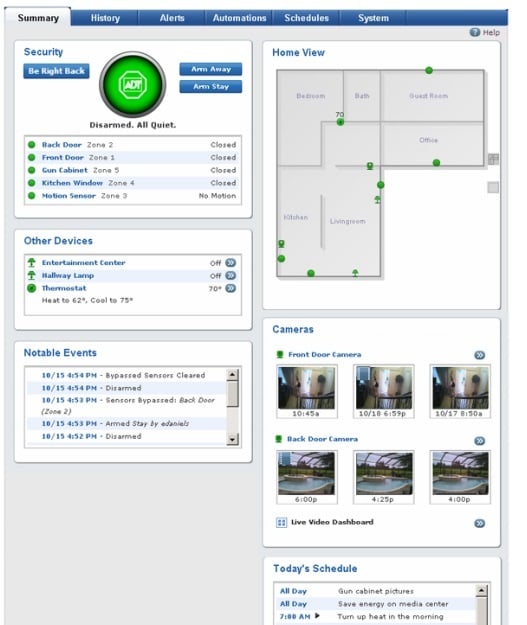
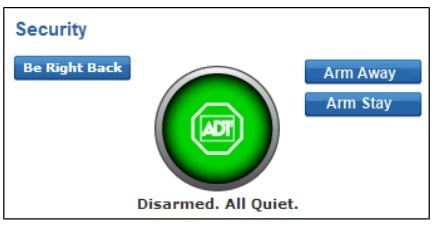
The Security Section shows your current mode (Be Right Back) on the left. Click this button to for a pop-up menu to select a different mode, or Click one Arm buttons to Arm. If the current status was Armed, you would see the other Arm option and Disarm as the right button options.
The Home View section is not automatically active. By selecting the "Customize this Paged" link at the bottom, you will see a pup up that allows you to customize sections. Check only the sections you wold like to see. When you check the Home View box for the first time, it will walk you
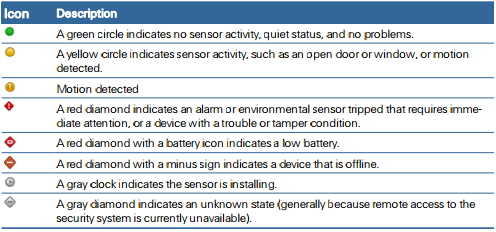
See the current state of devices on the floor plan, by looking at their icons. In general, yellow or light green icons indicate "active" states such as an open door or window, motion in an area, an unlocked door lock, a light turned on, or a thermostat actively heating or cooling. Darker green icons indicate "inactive" devices. Hover the cursor over any icon on the floor plan to display the name of the device, its state (where applicable), and the date and time of the last activity for that device. Click any security sensor icon to display the History tab for that device. Click any camera icon to display live video for that camera in a pop-up window. (See "Working With Live Video" on page 32 for more information.) Click any other device icon to view the actions available for that device. (See "Managing Door Locks" on page 40, "Managing Lights" on page 41, and "Managing Thermostats" on page 42 for more information.) Click the floor icons to the right of the floor plan to change the view to a different floor (if more than one floor is defined).
 |
 |
Icon Description A green circle indicates no sensor activity, quiet status, and no problems. A yellow circle indicates sensor activity, such as an open door or window, or motion detected. Motion detected A red diamond indicates an alarm or environmental sensor tripped that requires immediate attention, or a device with a trouble or tamper condition. A red diamond with a battery icon indicates a low battery. A red diamond with a minus sign indicates a device that is offline. A gray clock indicates the sensor is installing. A gray diamond indicates an unknown state
Your History tab very appropriately gives you the history of activity with your system. Select a period of time and find out what happened in that time frame such as who has come in and out and when, alarm activity and events with your devices. You can also specify a single device and view just that history or a type of history and for example, view all security system events.
You will find items such as the thermostat turning itself on, the cameras recording a video clip, the garage door opening or closing and so on. This tab provides access to monitor exactly what has happened in your home and recognize any out of the normal activity or confirm that things are functioning as you desire.
Alerts Tab
This is where you set up your text and email alerts. Depending on what devices you have selected for you home, ADT Pulse can message you to keep you in the know and up to the minute on what's going on inside your home.
Find out:
A security event happened: receive a notification any time your alarm is activated. Know the moment that the alarm sounds even if you are not home.
Something did happen: Your front porch cameras can notify you each time it detects movement on the porch. It can even link the a 30 second video for you to check out unexpected movement, making sure all is well or letting you know that all is not well. Viewing clips of what happens when you are not around can also assist in identifying suspicious "coincidences" green Chevy driving past your home a few too many times.
Something didn't happen: Suppose Josie, your daughter should be home between 3 and 3:30 unless you get a phone call. 3:30 passes, you have no phone call and Betsy, it seemed a silly name for you security system, but it works, alerts you that no one has come through the front door during that time. In a worst case scenario, you are aware that Josie isn't home at 3:30, not at 7:30 when you arrive home.
The ability to have your system alert you of events that matter to you, keep you from having to step out of that important meeting to call and see that Josie got home safely or the dog walker didn't forget that Fido's bladder needs relief.
Automations tab
here you set up the fun part, The events that your husband elbows his friends in the ribs for so he can say, "hey, check this out, does your house do that?" Automation are events that happen because something else happened. You arm your system to away and 2 minutes later, the lights turn themselves off, the doors all lock and the thermostat lowers the inside temperature.
With pull down menus and simple commands, setting up an automation is as easy as sleeping. Well almost, you do have to be awake, but only a little. Automations can be set up to occur every time the "trigger" occurs, only during certain day and time combinations, when a specific mode is used, or any combination. Check the box(es) by when it should occur and you're all set.
Schedules tab
Schedules are cool too. definitely earns a good eye brow raise after you say, "I set that up." And this is where you, "set that up." With equally straight forward set up, you "schedule" events to happen here either by date and time or select a window of time and click the randomize button. This will have the event occur at random times during that time frame.
The most common schedules are timing lights to either make the home appear occupied when you are out or lighting the exterior so no one comes home to a dark house. Thermostats as well are commonly put on a schedule but you might also benefit from locking doors and activating the alarm at the common bed time. Just in case someone forgets, Dorothy won't.(Dorothy is the alarm's name, remember?)
Systems tab
Here's the management tab. You manage users and accounts here (accounts would apply if you have multiple Pulse system on different locations,) as well as view a list of devices, their current status and see that they are functioning properly.
Modes are set up within the systems tab as well. There are 4 pre-names modes and 4 modes that you set to fit your lifestyle. A common one is Vacation Mode, I prefer to call it Vegas Mode. Each mode is capable of enacting schedules, automations and alerts that are all prompted by selecting that mode. Vegas mode has randomized lighting during the day, exterior lights on from 6-9, lowered thermostat, but an alert if it gets below 40 (one burst pipe in this life-time was plenty for me, thanks!) The doors all lock 2 minutes after it's activate, and I start receiving alerts every time there is motion on the front porch.
It also allow you to manage your ADT Pulse site settings, users, access codes, your ADT portal profile and profile history